If you’ve been scrolling through TikTok or X (Twitter) lately, you’ve likely seen them: hyper-realistic photos that suddenly blink, smile, and speak with startling accuracy. It used to require complex coding or expensive software. Not anymore.
Enter Google Flow.
Part of the new Google Labs creative suite and powered by the cutting-edge Veo 3 model, Google Flow is the secret tool creators are using to turn static images into cinematic, talking videos. Unlike older tools that just wobble a mouth, Flow generates native dialogue and realistic physics.
In this guide, I’ll show you exactly how to use Google Flow to make your photos talk, including the specific prompts you need to go viral.
What is Google Flow?
Google Flow is a node-based visual editor designed for AI video generation. Think of it as a playground where you can combine images, text, and audio to create video.
- The Powerhouse: It runs on Veo, Google’s most capable generative video model.
- The “Killer” Feature: It can generate Native Dialogue. You don’t always need to upload a voice file; you can simply type what you want the character to say, and the AI generates the voice and lip-sync together.
Step-by-Step: From Static Photo to Talking Video
Step 1: Access Google Flow
Currently, Google Flow is available via Google Labs (often appearing as “ImageFX” or “VideoFX” tools).
- Go to labs.google and look for Flow or VideoFX.
- Note: If you are in a region where it is waitlisted, sign up immediately. It is rolling out fast.
Step 2: Upload Your “Frame” (The Photo)
You don’t want to start from scratch; you want to animate a specific photo.
- Open a new project in Flow.
- Select “Frames to Video” (sometimes labeled as Image-to-Video).
- Upload your portrait.
- Pro Tip: For the best speech results, use a mid-shot (chest up) where the subject is facing forward.
Step 3: The Secret Sauce (The Prompt)
This is where most people fail. You cannot just type “make him talk.” You need to direct the AI like a movie director.
You must specify:
- The Action: (e.g., “speaking to the camera”)
- The Dialogue: (What they actually say)
- The Vibe: (Lighting, camera movement)
📋 Copy-Paste Prompts (The “Trending” Collection)
Here are the specific prompts you can copy, paste, and tweak to get that viral look.
1. Prompt:
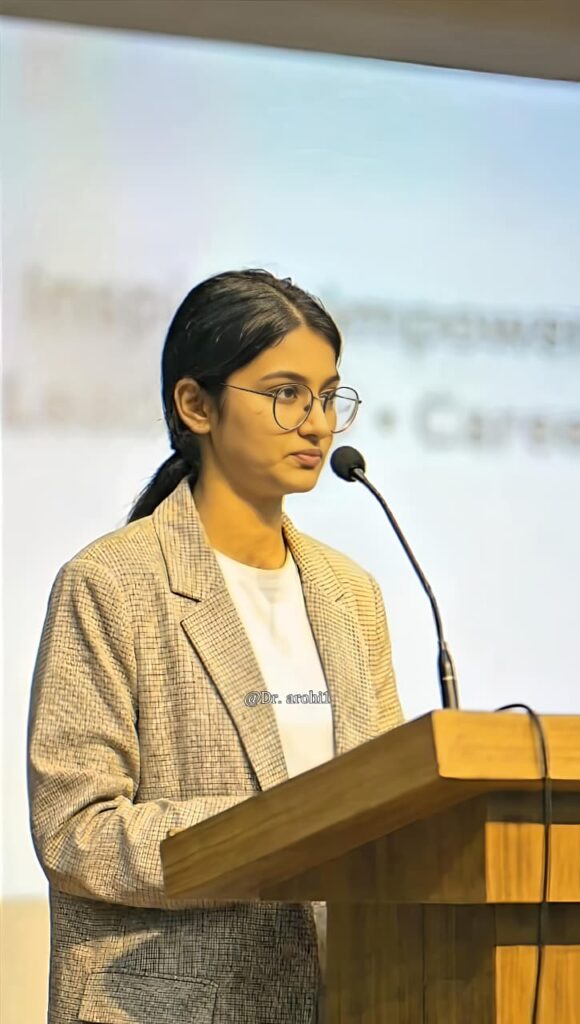
2. Prompt: dilog prompt
🛠️ Advanced Trick: Controlling the Voice
Google Flow’s Veo model attempts to match the voice to the visual context (e.g., a monster looks like a monster, so it sounds like one).
- To force a specific tone: Add descriptors before the dialogue tag.
- Example: “…speaking in a whispered, terrified voice, saying: ‘Don’t look behind you’…”
- Example: “…shouting in a joyful, celebratory deep voice, saying: ‘We won the championship!’…”
⚠️ “I can’t access Google Flow yet!” (The Alternative)
If you are stuck on the waitlist, don’t worry. The other “Google Flow” trending right now is actually a workflow running on Google Colab called LivePortrait.
LivePortrait is different: it takes your photo and “drives” it using a video of you talking.
- Search for “LivePortrait Google Colab” (The HuggingFace version is popular).
- Upload your Photo.
- Upload a video of yourself talking (the “Driving Video”).
- The AI maps your expressions onto the photo.
The Verdict
Google Flow is rapidly becoming the industry standard for creators because it fuses video generation and audio generation into one step. No more generating a voiceover in ElevenLabs, a video in Runway, and syncing them in Premiere. Flow does it all.
Start creating today, tag your videos with #GoogleFlow, and watch the views roll in!