AI-generated reels are exploding on Instagram and YouTube Shorts, especially cinematic edits synced to trending tracks like “Enakenna Yaarum Illaye”. These reels feature stunning visuals and smooth zoom-out transitions, making them highly engaging and shareable — which is why they often go viral quickly.
In this simple tutorial, you will learn exactly how to create this trending AI reel using image generation, AI video tools, and CapCut. No advanced editing skills required!
Step 1 — Generate Your AI Images
First, you need to generate three distinct images. Take screenshots of the reference video you want to recreate to use as base images. Open your preferred AI Image Generator app.
Upload the first reference screenshot along with a high-quality photo of yourself. This ensures the AI maintains your facial consistency in the generated art.
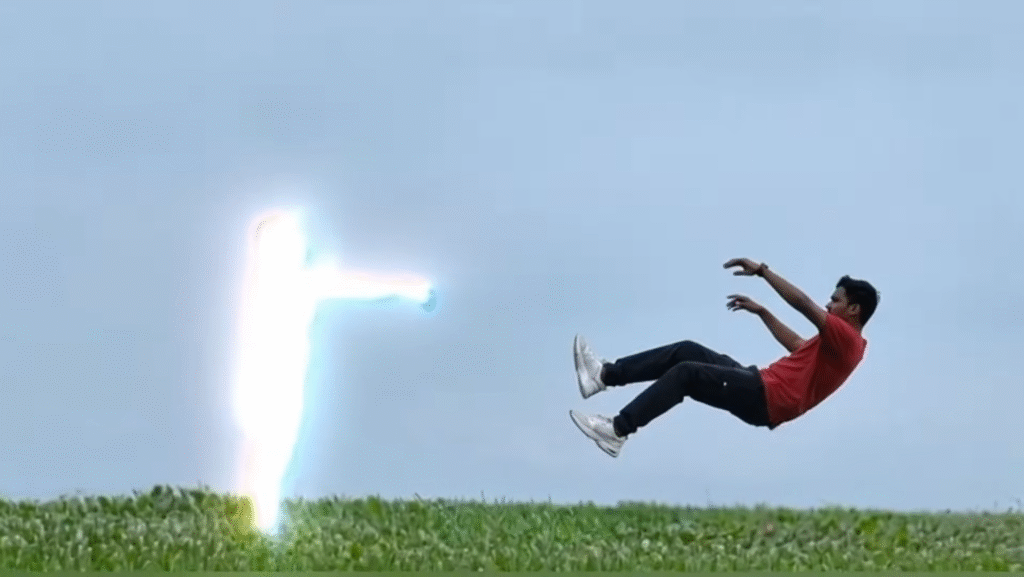
Step 2 — Copy the Image Prompts
Paste your prompt to generate the first image. This tells the AI exactly what cinematic scene to create.
Image Prompt 1:
Generate the image and save it. Repeat this exact process for the second and third images using variations of the prompt to change the background or scenery.
Image Prompt 2:
Image Prompt 3:
✅ Save these 3 images — you will convert them into videos in the next step.
Step 3 — Convert Images into Video
Now it’s time to turn your static images into moving cinematic clips. Open an AI Video Generator (like Krea AI, Luma Dream Machine, or Runway).
Upload your first generated image to start the frame-to-video process.
Step 4 — Copy the Video Prompt
Use the prompt below to give your videos realistic motion.
AI Video Prompt:
Paste this prompt into the video generator. Generate and download the video. Repeat this process for the remaining two images so you end up with three separate video clips.
Step 5 — Open CapCut for Editing
Once you have your three generated videos, open the CapCut application on your phone.
✅ Tap on New Project and select all three generated videos to import them into your timeline.
Step 6 — Add Keyframes for Zoom-Out Animation
To give the video that professional trending look, you need to animate the clips:
- Select your first video clip.
- Add a Keyframe at the very beginning of the clip, and another Keyframe at the end.
- At the ending keyframe, use your fingers to slightly zoom out the video.
- Open the Graphs tool and adjust the curve to make the zoom-out animation smooth (create a standard ease-in/ease-out curve).
- Repeat this exact keyframe and graph setup for the other two clips.
Step 7 — Apply the “Pull Out” Transition
The secret to the seamless flow in these specific trending reels is the transition.
- Tap on the transition box (the little square) between your first and second clip.
- Find and select the Pull Out transition.
- Tap Apply to All so the transition is uniformly applied across the entire edit.
Step 8 — Export Your Video
Now, just export the video in high quality (1080p or 4K).
Your visual edit is complete! When you upload it to Instagram, simply search for the trending “Enakenna Yaarum Illaye” audio and sync it to your video.
Tips to Make Your Reel Go Viral
✔ Always add the trending audio directly from the Instagram or YouTube Shorts library to avoid copyright blocks and boost reach. ✔ Sync the “Pull Out” transitions perfectly with the beats of the music. ✔ Keep the video short and engaging. ✔ Upload during peak hours (e.g., 6 PM – 9 PM). ✔ Use hashtags: #enakkennayaarumillaye #trendingreels #aiediting #capcuttutorial #viralreel #aiart
Final Thoughts
Creating a high-quality, trending AI reel is now easier than ever. With the right image and video prompts, paired with simple CapCut keyframing and transitions, you can produce cinematic content in minutes.
Start editing today — your next reel could be the one that goes viral!