If you’ve spent any time on TikTok or Instagram Reels recently, you’ve likely seen those perfectly synced, high-energy videos that look like they took hours to make. The secret? CapCut Templates.
They are the cheat code to viral content. However, depending on where you are in the world, accessing them can be tricky. But don’t worry—I’ve got the exact workflow you need to get them working, specifically using the popular library at omediting.top.
Once we cover the “one-click” magic of templates, I’ll also teach you how to take full control and edit manually in CapCut yourself.
Part 1: How to Use CapCut Templates (The “Secret” Method)
Many users struggle to get template links to open properly. This usually happens because CapCut servers are region-locked in certain areas. To bypass this and ensure the link from omediting.top opens directly in your app, you must follow this specific order.
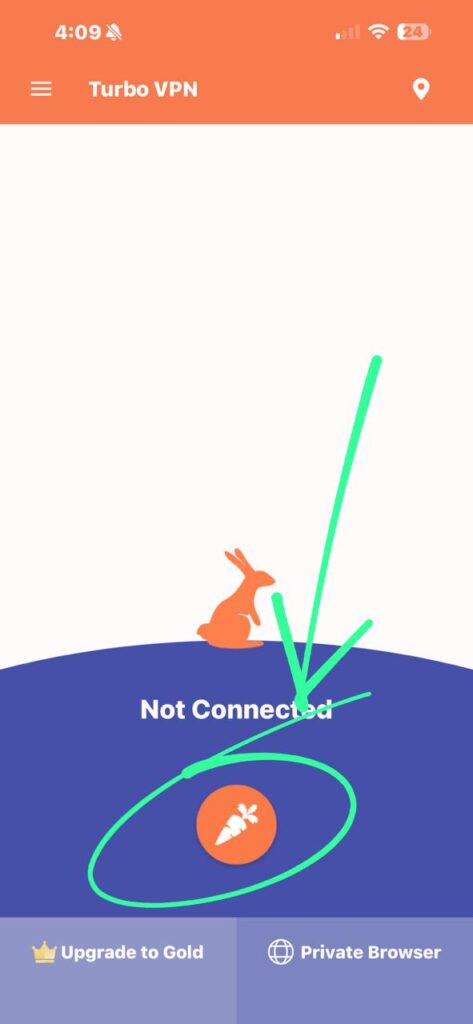
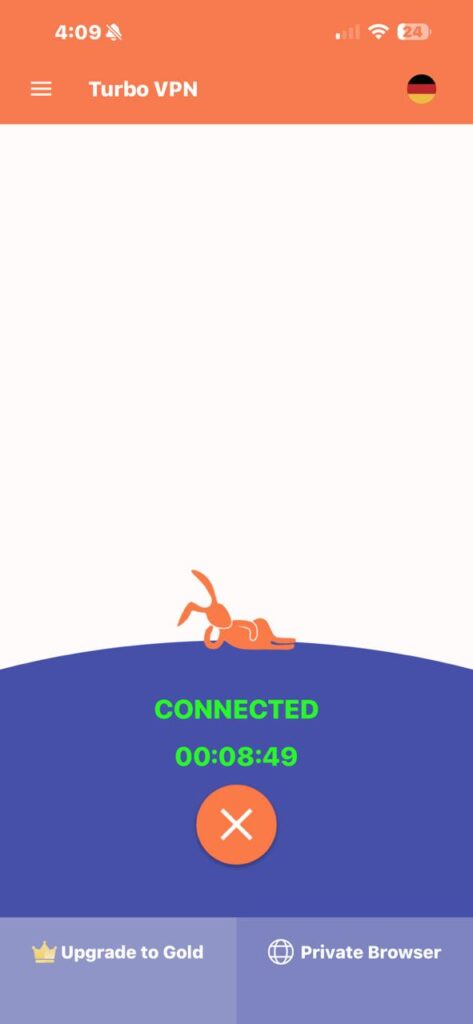
Step 1: Turn on Your VPN (Do This First!)
This is the most critical step. Before you even open your browser, you need to activate a VPN (Virtual Private Network).
- Why? If you are in a region where CapCut is restricted (like India), clicking a template link without a VPN will result in a blank screen or a “Network Error.”
- Action: Open your preferred VPN app (common choices include NordVPN, ExpressVPN, or free alternatives like Proton VPN). Connect to a server in a region where CapCut is fully accessible, such as the United States, United Kingdom, or Singapore.
- Verify: Wait until you see the “Connected” icon in your status bar.
Step 2: Navigate to omediting.top
Once your VPN is running securely:
- Open your mobile browser (Chrome or Safari).
- Type in
omediting.top. - Browse the site. This website is a repository for trending CapCut templates that are currently going viral. Look for the style that fits your vibe—whether it’s a beat-sync edit, a slow-motion transformation, or a lyric video.

Step 3: Click the “Use Template” Button
When you find the template you want on the website:
- Scroll down to find the specific download or usage button. It is usually labeled “Use Template on CapCut” or similar.
- Click it.
- Because your VPN is on, your phone will automatically redirect you from the browser to the CapCut app.
- You will see a preview of the template inside CapCut with a button at the bottom right that says “Use Template.” Tap that.
Step 4: Add Your Photos & Export
Now, simply select the photos or video clips from your gallery that the template requires. Hit “Preview,” and CapCut will automatically chop, time, and apply effects to your footage.
- Pro Tip: When exporting, tap “Export without watermark” (usually the TikTok icon option) to save a clean version to your phone.
Part 2: How to Use CapCut Yourself (Manual Editing)
Templates are great, but learning to edit manually gives you creative freedom. Here is a crash course on using CapCut from scratch in under 3 minutes.
1. The Interface
Open CapCut and tap “New Project.” Select your video clips and hit “Add.”
- The Timeline: This is the bottom half where your clips live. You can pinch two fingers on the screen to zoom in (for precise cuts) or zoom out (to see the whole video).
2. Trimming and Splitting (The Bread & Butter)
Bad editing is usually just bad timing. You need to cut out the boring parts.
- To Trim: Tap on a clip in the timeline. Drag the white handles at the start or end to shorten it.
- To Split: Move the white vertical line (the playhead) to the exact moment you want to cut. Tap the “Split” icon at the bottom. You can now delete the unwanted middle section or add a transition between the two new clips.
3. Adding Music and Audio Sync
Video is 50% sound.
- Tap “Audio” > “Sounds” to use CapCut’s library, or “Extracted” to pull audio from a video in your camera roll.
- Match Cut: Select your audio track and tap “Beats” (the flag icon). You can auto-generate beats. This puts yellow dots on your audio timeline, showing you exactly where to cut your video clips so they snap to the rhythm of the music.
4. Keyframes (The “Pro” Feature)
Ever wonder how editors make a video slowly zoom in? They use Keyframes.
- Tap your video clip.
- Tap the diamond icon (next to the play button) at the start of the clip.
- Scroll to the end of the clip, zoom in on your video in the preview window, and a second diamond will appear automatically.
- CapCut will now smoothly animate the movement between those two points.
5. Exporting for Quality
Don’t ruin your edit with low quality.
- Before hitting export, tap the “1080P” dropdown at the top right.
- Set Resolution to 1080p or 2k/4k.
- Set Frame Rate to 60fps for smooth motion, or 30fps for a standard cinematic look.
- Turn “Smart HDR” off (it often makes colors look fake).
Final Thoughts
Whether you are using the shortcut of omediting.top with a VPN or building a masterpiece from scratch, CapCut is the most powerful tool in your pocket. The key is to just start creating.